Version control and reproducible research

BIOSTAT620: Introduction to Health Data Science

Dylan Cable

Part I: Intro and unix

Naming convention

  • In general you want to name your files in a way that is related to their contents and specifies how they relate to other files.

  • The Smithsonian Data Management Best Practices has “five precepts of file naming and organization”

Five precepts of file naming and organization

  • Have a distinctive, human-readable name that gives an indication of the content.
  • Follow a consistent pattern that is machine-friendly.
  • Organize files into directories (when necessary) that follow a consistent pattern.
  • Avoid repetition of semantic elements among file and directory names.
  • Have a file extension that matches the file format (no changing extensions!)

For specific recommendations we highly recommend you follow The Tidyverse Style Guide

The terminal

  • Instead of clicking, dragging, and dropping to organize our files and folders, we will be typing Unix commands into the terminal.

  • The way we do this is similar to how we type commands into the R console, but instead of generating plots and statistical summaries, we will be organizing files on our system.

The terminal

  • The terminal is integrated into Mac and Linux systems, but Windows users will have to install an emulator. Once you have a terminal open, you can start typing commands.

  • You should see a blinking cursor at the spot where what you type will show up. This position is called the command line.

The filesystem

The home directory

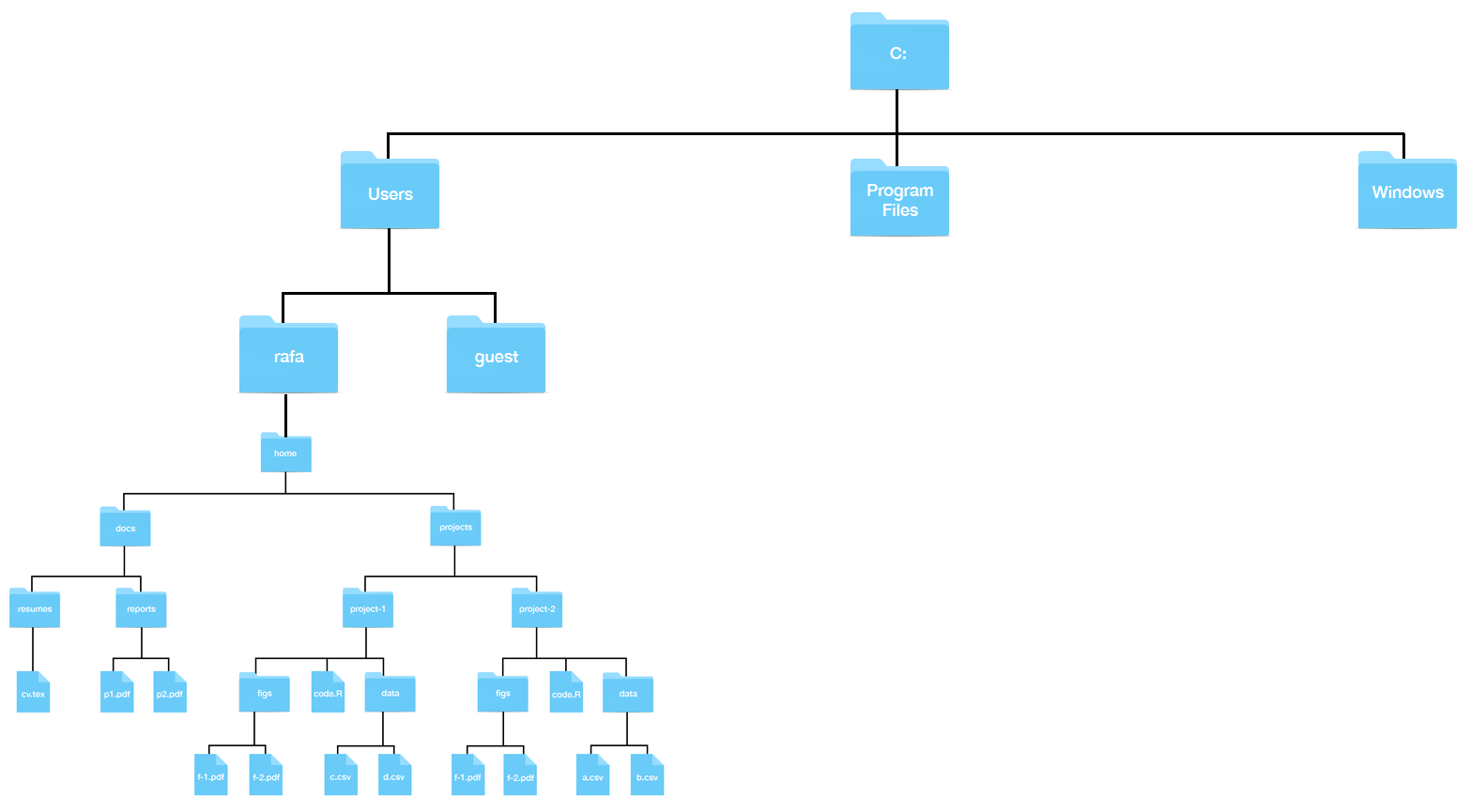
Windows

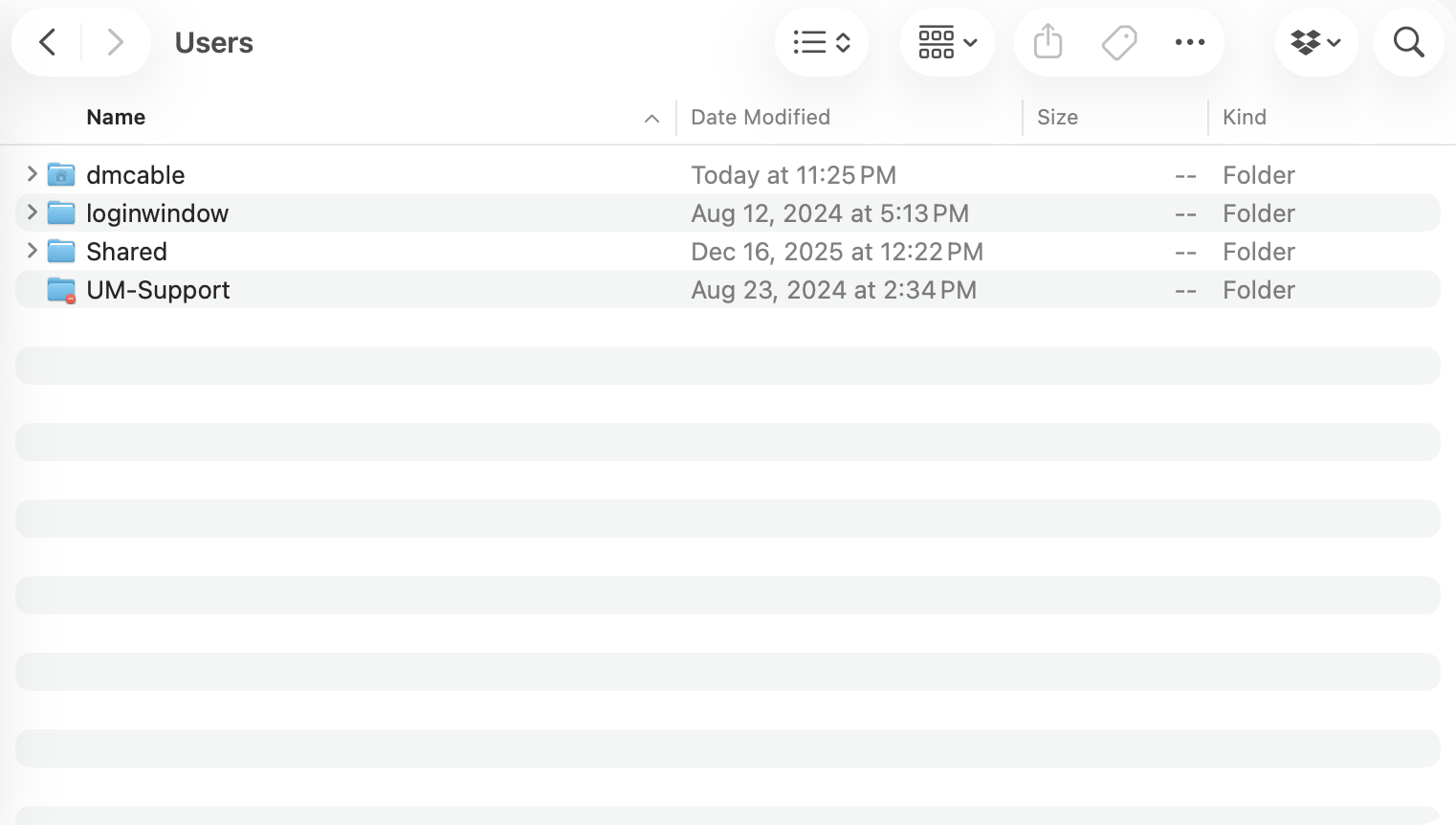
The structure on Windows looks something like this:
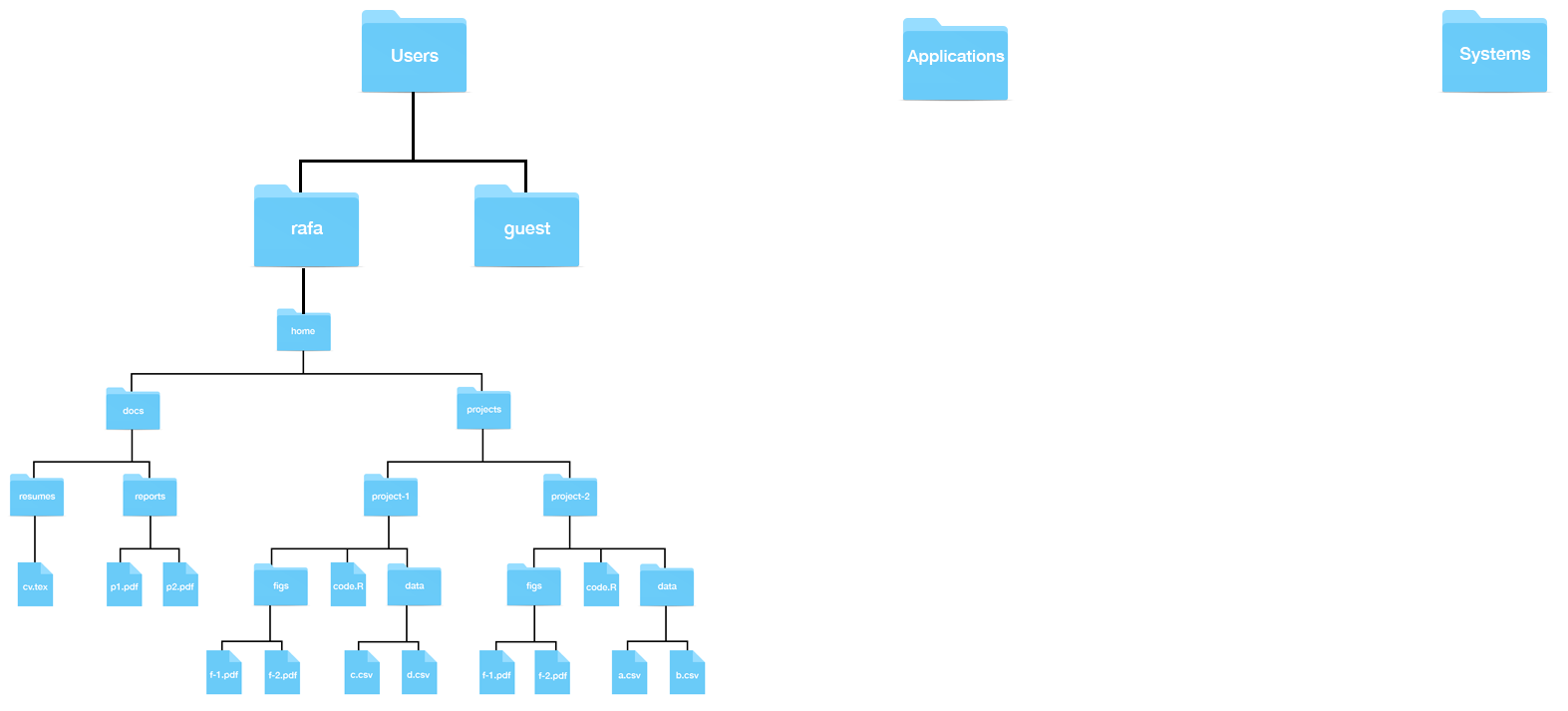
Mac

And on MacOS something like this:
Working directory

  • The working directory is the directory you are currently in. Later we will see that we can move to other directories using the command line.

  • It’s similar to clicking on folders.

  • You can see your working directory using the Unix command pwd

In R we can use getwd()

Paths

  • This string returned in previous command is full path to working directory.

  • The full path to your home directory is stored in an environment variable.

  • You can see it like this echo $HOME

Paths

  • In Unix, we use the shorthand ~ as a nickname for your home directory

  • Example: the full path for docs (in image above) can be written like this ~/docs.

  • Most terminals will show the path to your working directory right on the command line.

  • Try opening a terminal window and see if the working directory is listed.

Unix commands

  • ls: Listing directory content

  • mkdir and rmdir: make and remove a directory

  • cd: navigating the filesystem by changing directories

  • pwd: see your workding directory

  • mv: moving files

  • cp: copying files

  • rm: removing files

  • less: looking at a file

Autocomplete

  • In Unix you can auto-complete by hitting tab.

  • This means that we can type cd d then hit tab.

  • Unix will either auto-complete if docs is the only directory/file starting with d or show you the options.

  • Try it out! Using Unix without auto-complete would make it unbearable.

Text editors

Command-line text editors are essential tools, especially for system administrators, developers, and other users who frequently work in a terminal environment. Here are some of the most popular command-line text editors:

  • Nano
  • Pico
  • Vi or Vim
  • Emacs

Other very useful commands you should learn

  • curl - download data from the internet.

  • tar - archive files and subdirectories of a directory into one file.

  • ssh - connect to another computer.

  • find - search for files by filename in your system.

  • grep - search for patterns in a file.

  • awk/sed - These are two very powerful commands that permit you to find specific strings in files and change them.

Resources

To get started.

Part 2: Version control

What is version control?

[I]s the management of changes to documents […] Changes are usually identified by a number or letter code, termed the “revision number”, “revision level”, or simply “revision”. For example, an initial set of files is “revision 1”. When the first change is made, the resulting set is “revision 2”, and so on. Each revision is associated with a timestamp and the person making the change. Revisions can be compared, restored, and with some types of files, merged. – Wikipedia

Motivation

We want to avoid this:

Posted by rjkb041 on r/ProgrammerHumor

Motivation

  • This is particularly true when more than one person is collaborating and editing the file.

  • Even more important when there are multiple files, as there is in software development, and to some extend data analysis.

Motivation

  • Git is a version control system that provides a systematic approach to keeping versions of files.

Posted on devrant.com/ by bhimanshukalra

Motivation

But we have to learn some things.
From Meme Git Compilation by Lulu Ilmaknun Qurotaini

Note

In these notes, I use < > to denote a placeholder. So if I say <filename> what you eventually type is the filename you want to use, without the < >

Why do we care

Have you ever:

  • Made a change to code, realised it was a mistake and wanted to revert back?

  • Lost code or had a backup that was too old?

  • Had to maintain multiple versions of a product?

  • Wanted to see the difference between two (or more) versions of your code?

  • Wanted to prove that a particular change broke or fixed a piece of code?

  • Wanted to review the history of some code?

Why do we care (cont’d)

  • Wanted to submit a change to someone else’s code?

  • Wanted to share your code, or let other people work on your code?

  • Wanted to see how much work is being done, and where, when and by whom?

  • Wanted to experiment with a new feature without interfering with working code?

In these cases, and no doubt others, a version control system should make your life easier.

Stackoverflow (by si618)

Git: The stupid content tracker

Git logo Linus Torvalds
Git logo and Linus Torvalds, creator of git

Git: The stupid content tracker

  • During this class (and perhaps, the entire program) we will be using Git.

  • Git is used by most developers in the world.

  • A great reference about the tool can be found here

  • More on what’s stupid about git here.

How can I use Git

There are several ways to include Git in your work-pipeline. A few are:

  • Through command line

  • Through one of the available Git GUIs:

More alternatives here.

Goal for the day

Learn how to:

  • Create a repository
  • push something to the repository
  • connect RStudio to GitHub

Do you have git?

Before we start:

  • Make sure you have Git installed.
  • Open a terminal and type:
git --version

If not installed

  • on a Mac, follow the instructions after typing the above.
  • on Windows follow these instructions

What is Git?

What is GitHub?

  • Described a social network for software developers.

  • Basically, it’s a service that hosts the remote repository (repo) on the web.

  • This facilitates collaboration and sharing greatly.

What is GitHub?

There many other features such as

  • Recognition system: reward, badges and stars.
  • You can host web pages, like the class notes for example.
  • Permits contributions via forks and pull requests.
  • Issue tracking
  • Automation tools.

What is GitHub?

  • The main tool behind GitHub is Git.

  • Similar to how the main tool behind RStudio is R.

GitHub accounts

  • Pick a professional sounding name.

  • Consider adding a profile README.md.

  • Instructions are here.

  • Example here.

Repositories

  • A GitHub repository (repo) is where your store your code for a project.

  • You will have at least two copies of your code: one on your computer and one on GitHub.

  • If you add collaborators to this repo, then each will have a copy on their computer.

  • The GitHub copy is considered the main (previously called master) copy that everybody syncs to.

  • Git will help you keep all the different copies synced.

Overview of Git

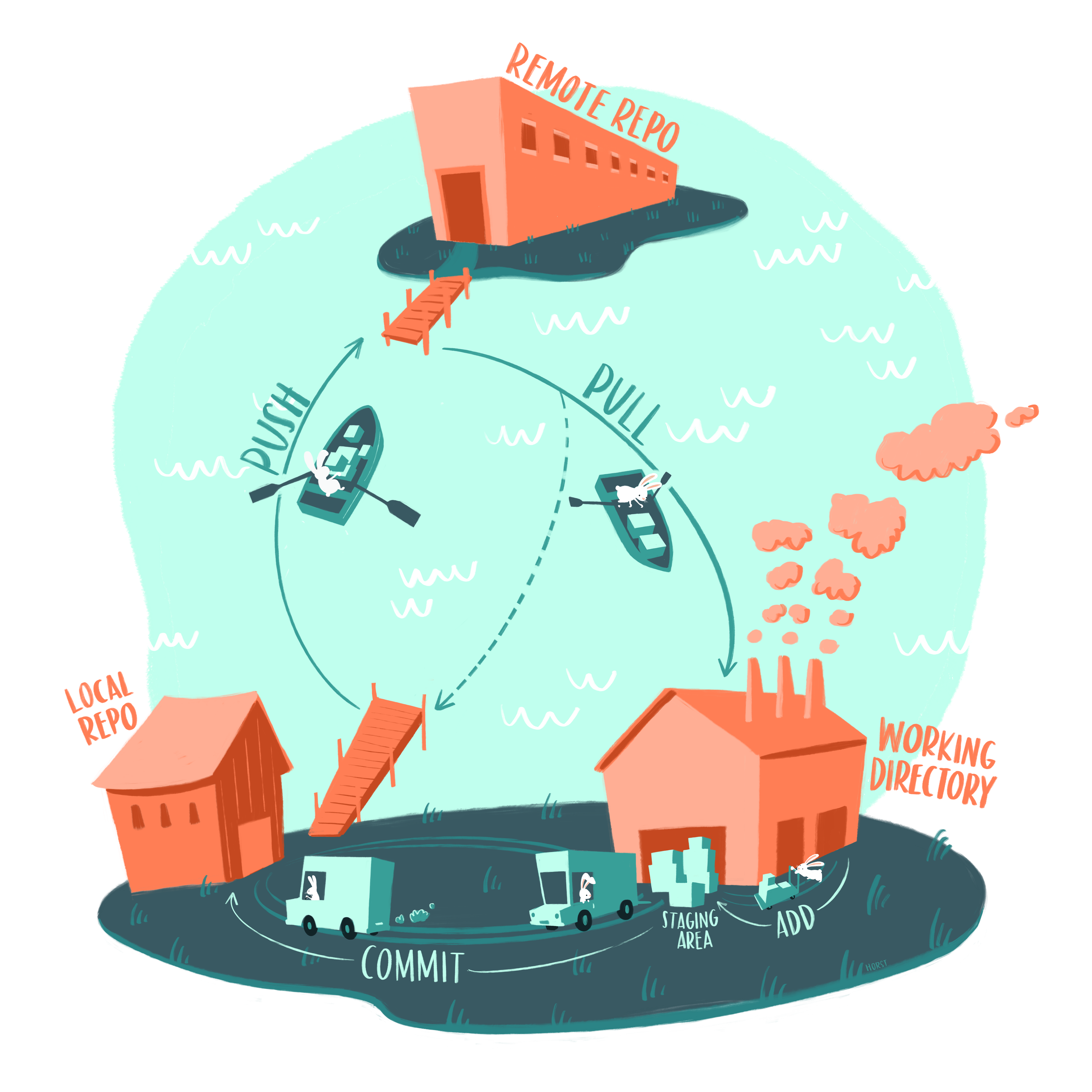
The main actions in Git are to:

  1. pull changes from the remote repo.
  2. add files, or as we say in the Git lingo stage files.
  3. commit changes to the local repo.
  4. push changes to the remote repo.

From Meme Git Compilation by Lulu Ilmaknun Qurotaini

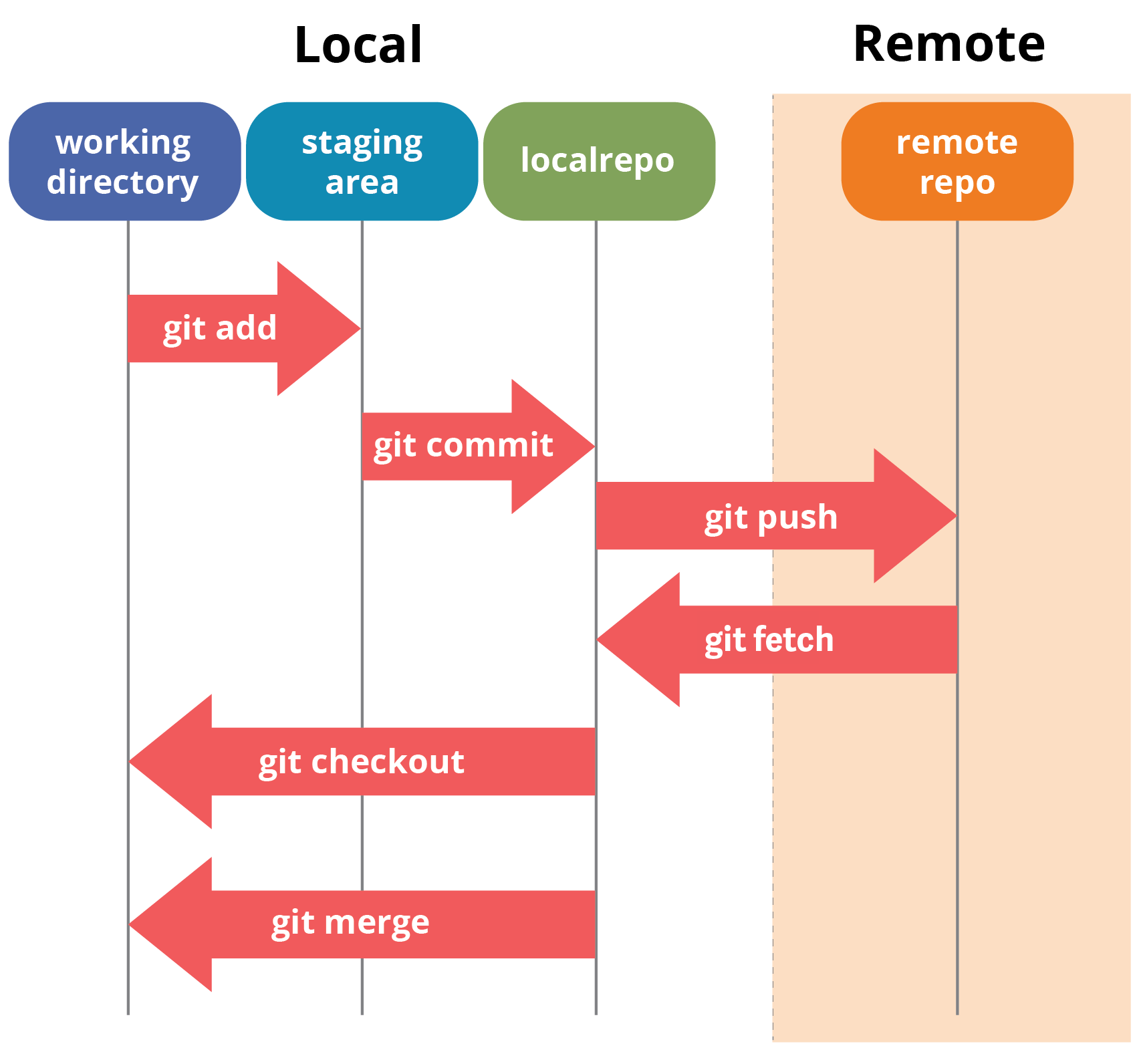
The four areas of Git

Status

git status filename

Add

Use git add to put file to staging area.
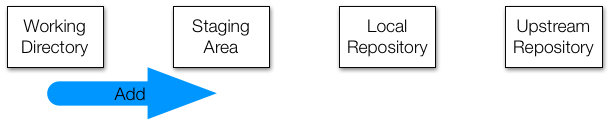
git add <filename>

We say that this file has been staged. Check to see what happened:

git status <filename>

Commit

  • To move all the staged files to the local repository we use git commit.
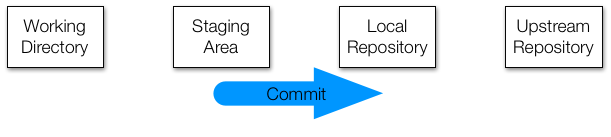
git commit -m "must add comment"
  • Once committed the files are tracked and a copy of this version is kept going forward.

  • This is like adding V1 to your filename.

Commit

Note

You can commit files directly without using add by explicitely writing the files at the end of the commit:

git commit -m "must add comment" <filename>

Push

  • To move to upstream repo we use git push
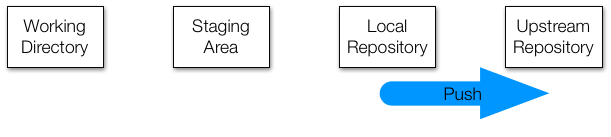
git push -u origin main
  • The -u flag sets the upstream repo.

  • By using this flag, going forward you can simply use git push to push changes.

  • So going forward we can just type:

git push

Push

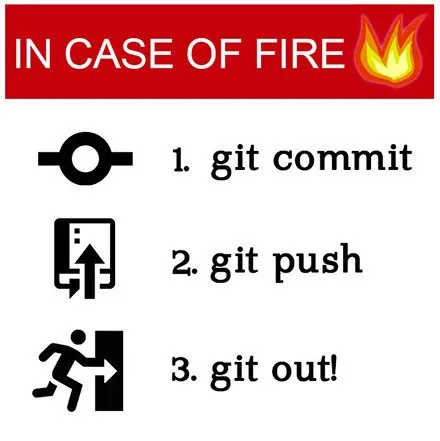
  • When using git push we need to be careful as if collaborating this will affect the work of others.

  • It might also create a conflict.

Posted by andortang on Nothing is Impossible!

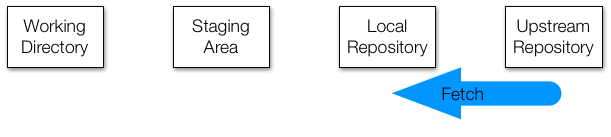
Fetch

  • To update our local remote-tracking branch to match the remote repository.
git fetch
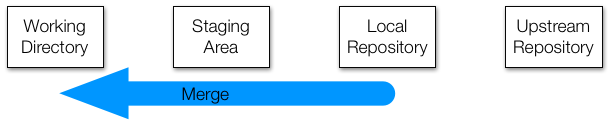
Merge

  • Once we are sure this is good, we can merge with our local files:
git merge
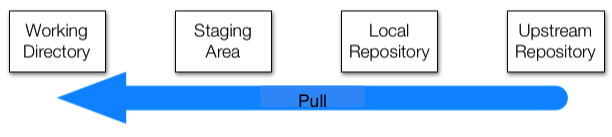
Pull

I rarely use fetch and merge and instead use pull which does both of these in one step

git pull
Checkout

  • If you want to pull down a specific file you from the remote repo you can use:
git checkout filename
  • I use this when I make changes but decide I want to go back to original version on remote repo.

Warning

If you have a newer version in your local repository this will create a conflict. It won’t let you do it. If you are sure you want to get rid of your local copy you can remove it and then use checkout.

Checkout

  • You can also use checkout to obtain older version:
git checkout <commit-id> <filename>
  • You can get the commit-id either on the GitHub webpage or using
git log filename

Reset

  • What if I commit and realize it was a mistake?
git reset HEAD~1

undos the commit and unstages the files, but keeps your local copies. I use this on very often.

  • There are many wasy of using get reset and it covers most scenarios.

  • ChatGPT and stackoverflow are great resources to learn more.

Branches

  • We are just sratching the surface of Git.

  • One advanced feature to be aware of is that you can have several branches, useful for working in parallel or testing stuff out that might not make the main repo.
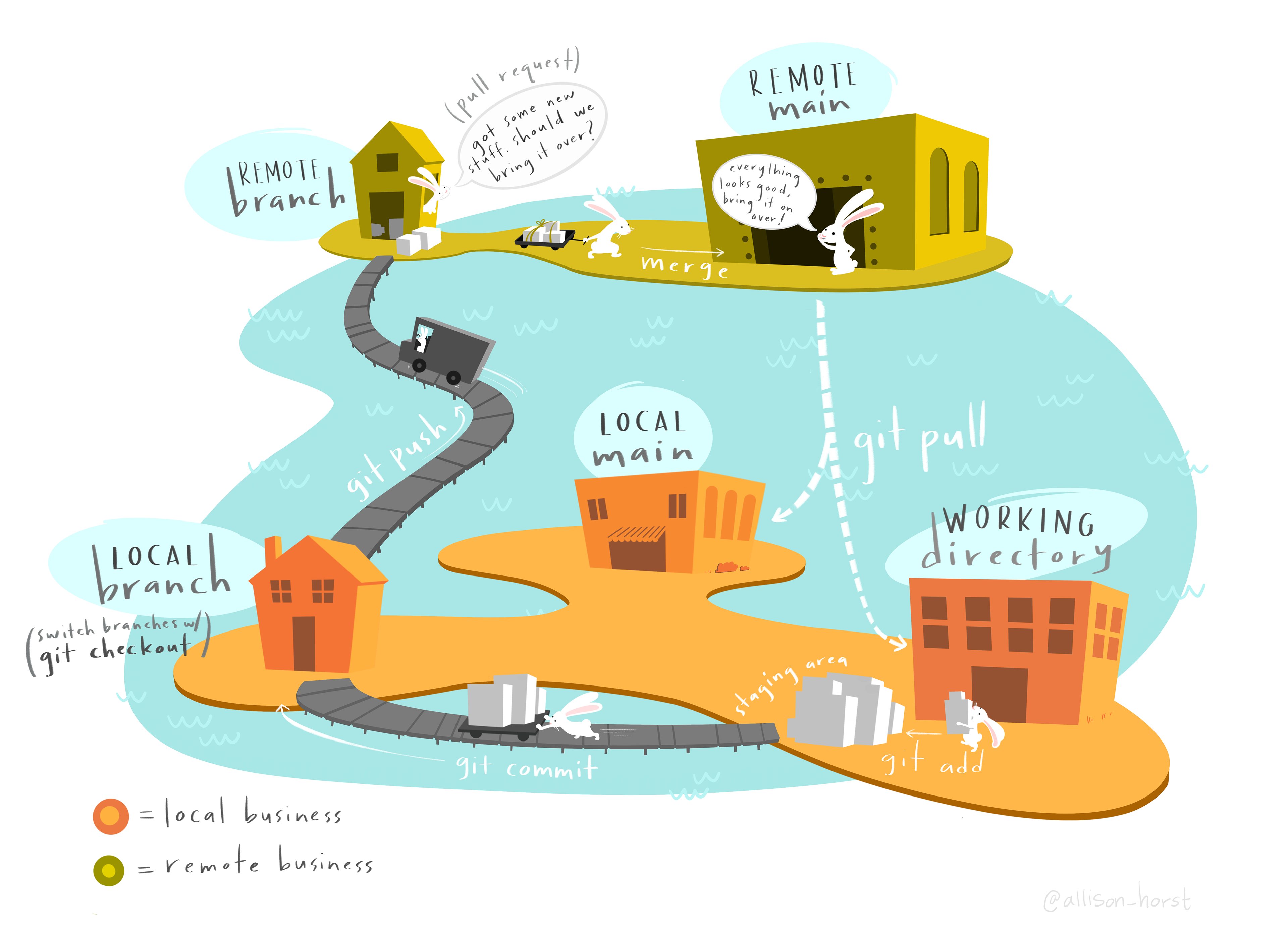
Art by: Allison Horst

Branches

  • We wont go over this, but we might need to use these two related commands:
git remote -v
git branch 

Clone

  • Another common command is git clone.

  • It let’s download an entire repo, including version history.

git clone <repo-url>

Using Git in RStudio

  • Go to file, new project, version control, and follow the instructions.

  • Then notice the Git tab in the preferences.

Basic commands

A Common workflow

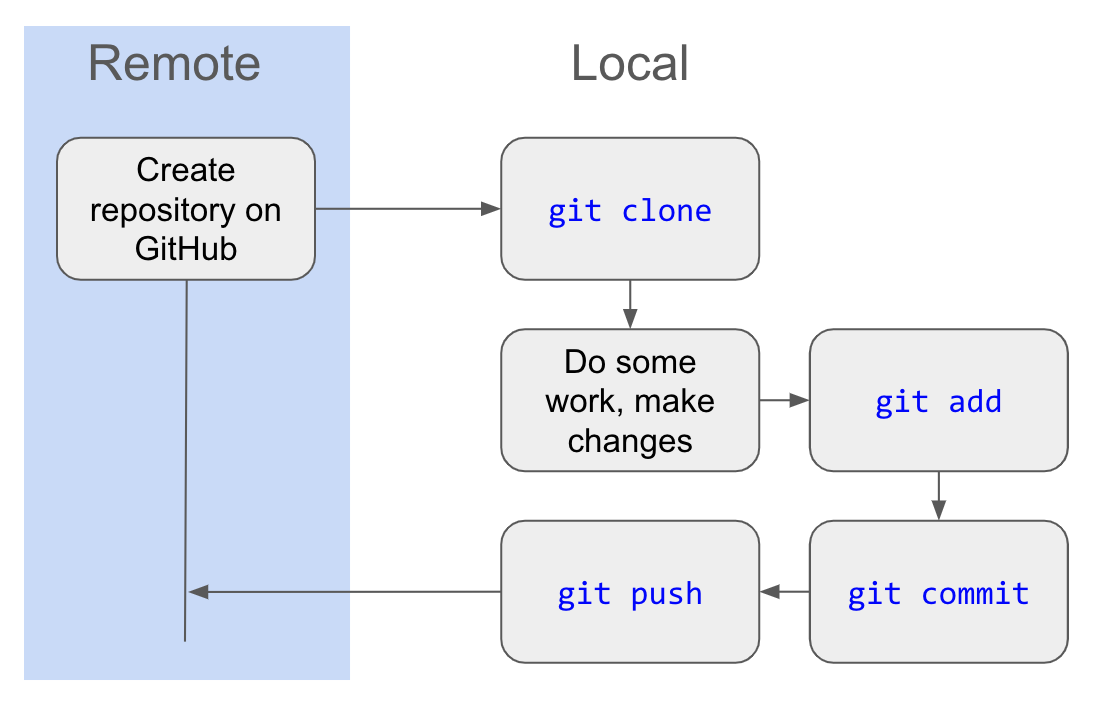
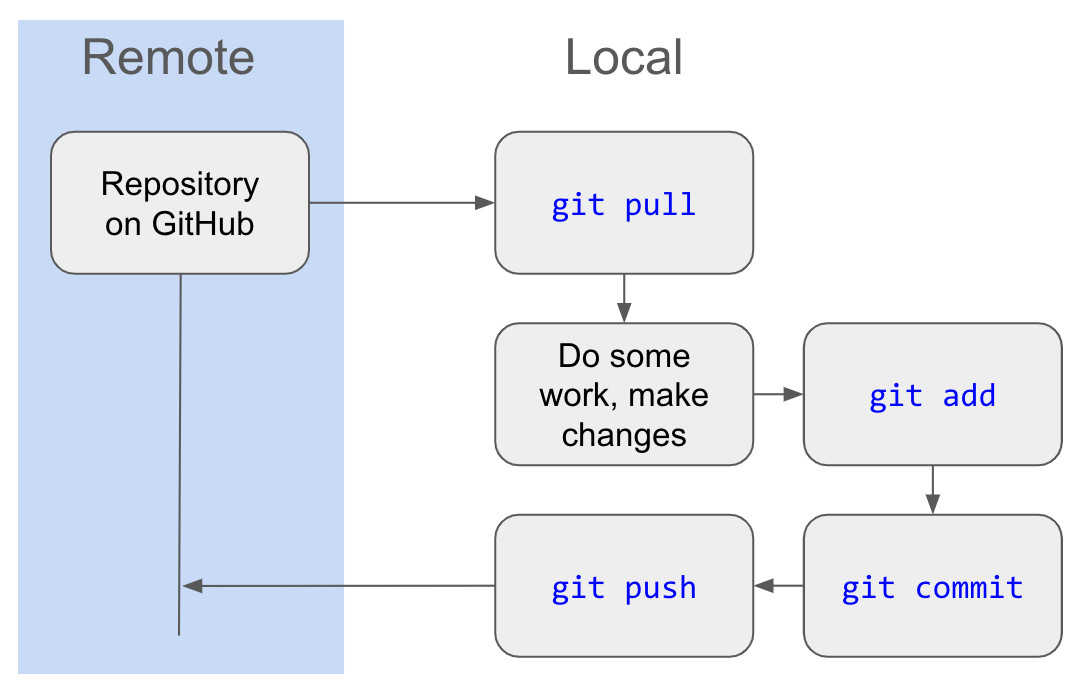
  1. Start the session by pulling (possible) updates: git pull
  2. Make changes to your files
    1. (optional) Revert changes on a file: git restore [target file]
  3. Move changes to the staging area: git add
    1. (optional) Add untracked (possibly new) files: git add [target file]
    2. (optional) Stage tracked files that were modified: git add -u
  4. Commit:
    1. If finished staging: git commit -m "Your comments go here."
    2. If modifications not staged: git commit -a -m "Your comments go here."
  5. Upload the commit to the remote repo: git push.

First time

The rest of the time

Check the status

  • Can’t remember if you’ve changed any files?
  • Don’t know if your local repository is in sync with the remote repository?

You can always check the current state of your repository with git status!

Resources

  • Git’s everyday commands, type man giteveryday in your terminal/command line. and the very nice cheatsheet.

  • My personal choice for nightstand book: The Pro-git book (free online) (link)

  • Github’s website of resources (link)

  • The “Happy Git with R” book (link)

  • Roger Peng’s Mastering Software Development Book Section 3.9 Version control and Github (link)

  • Git exercises by Wojciech Frącz and Jacek Dajda (link)

  • Checkout GitHub’s Training YouTube Channel (link)
From Meme Git Compilation by Lulu Ilmaknun Qurotaini

For more memes see Meme Git Compilation by Lulu Ilmaknun